
Getting Started
When first opening the application, you will be prompted with a File Dialog and a What's New Dialog. You may close both of these.
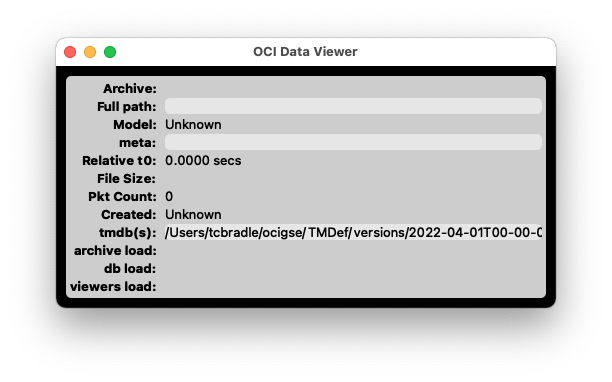
The main window (see below) displays infoinformation about the loaded archive. OnDepending someon Operatingthe Systemsoperating system, the main menu optionsmay willappear beeither accessible fromat the top of thisthe window.window Onor others,in theythe willsystem bemenu accessiblebar alongat the top menuof bar.the screen. If the menu bar is not visible at the top of the screen,visible, click the main window to bring it into focus.
IfClosing this window iswill closed,exit the whole application will be shut down. application.
Real-time
To start viewing data in real-time:
Load from archive
You can also load and view data from archives. This can be done in a number of different ways:
File --> TID Explorer
This will open up a new window that displays a tree view of your root data directory which is configured in your ~/.699config.INI file.
File --> Open Archive
Opens up a standard file dialog. Any file can be opened and parsed, so it's up to the user to select a valid archive file.
File --> Open TID
Opens up a file dialog to select a Test Directory. The test directory must match an expected formaat. TBD
File --> Open next TID
Opens up the next TID. The test data directory needs to follow a standard structure. TBD
File --> Open next TID
Opens up the previous TID. The test data directory needs to follow a standard structure. TBD