Dashboard: Making URLs and Bookmarks
Your dashboard view can be remembered in XINA and you can save a URL to the dashboard as a bookmark in your browser so that you can very quickly get back to seeing the data.
In the upper right corner of the Dashboard you will see the “Save” and “Load” buttons.
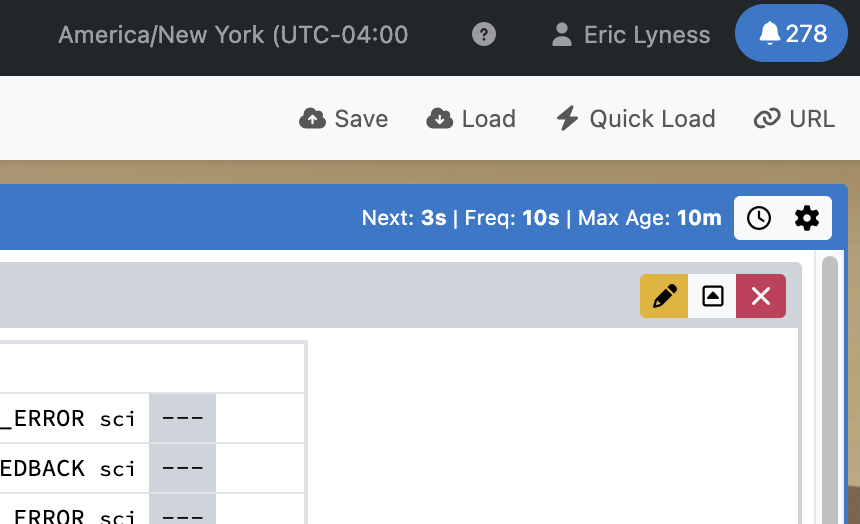
Clicking save will bring out this view:
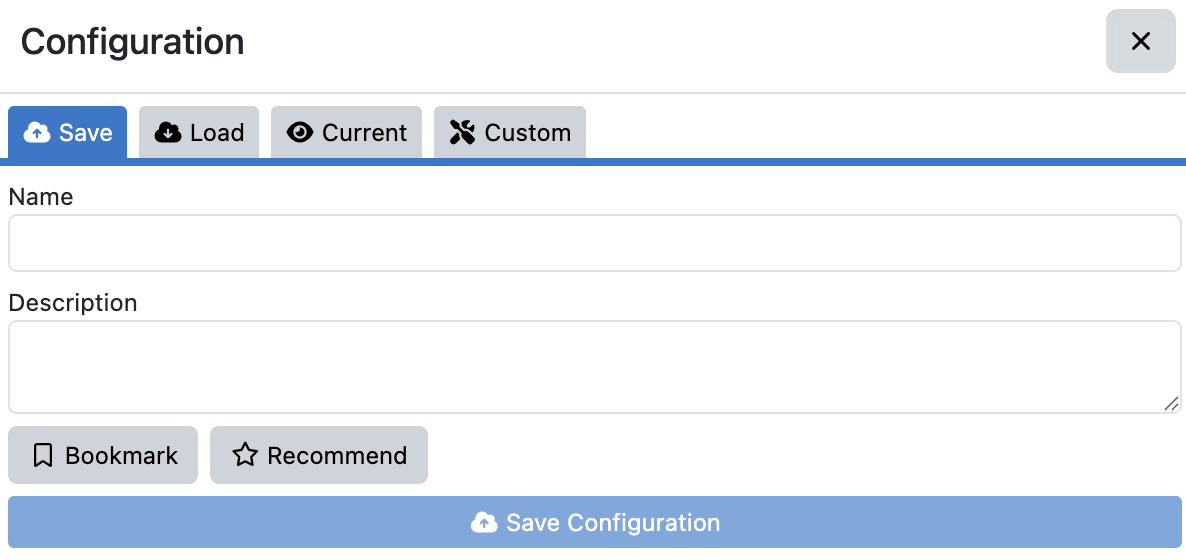
Give the dashboard a descriptive name so you can easily find it in a search. There might be many dashboards later. If this is one you use all the time, click “Bookmark” and it will always appear at the top of the search list. Click “Recommend” and other people will also see it at the top of their lists.
Once you’ve saved the Dashboard, you can load it by clicking the “Load” bottom in the top right. You should see something like this:
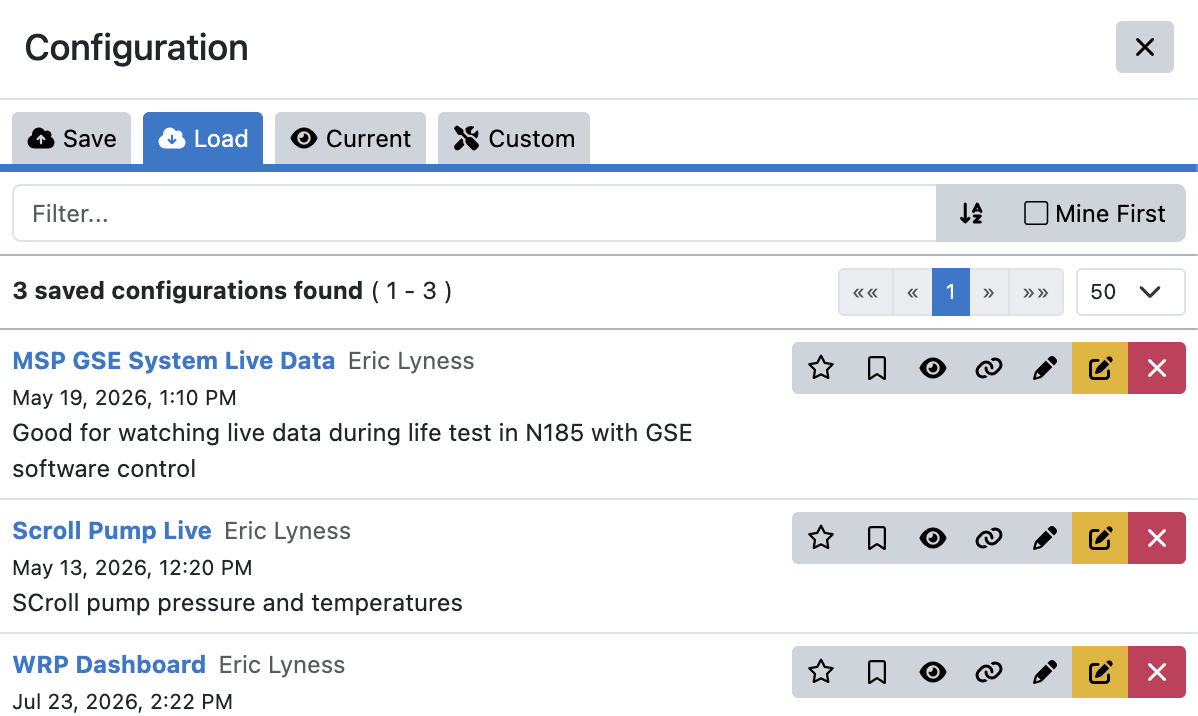
Clicking on the blue words, like “Scroll Pump Live” will load the Dashboard view. Notice the set of tools to the right of the name:

The 4th icon, that looks like a chain link, allows you to create a URL directly to the saved view:

You can copy the link to the clipboard then in your browser, create a new Bookmark and add it to your Bookmarks bar, or wherever is convenient.
The other icons in the row above:
 Make this one of your favorites so it always shows up at the top of your list.
 Recommend this configuration to everyone (it will show up below their favorites)
Creating Custom Dashboards
https://drams.xina.io/tool/dashboard-editor
Use the '''Dashboard Editor''' to create dashboard configs that will appear in the Dashboard view shown above.
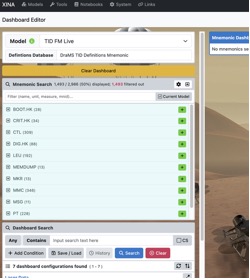
The top item in the view  is important. It determines the database from which the data will come. For the dashboard, always use “TID FM Live”. (other models might be used for specific purposes not covered here).
Also leave the "Definitions Database” as is.