Data Viewer User Guide
User Guide for the Data Viewer application.
- Overview
- Install and Run
- Initial Startup
- Load Data
- Export Data
- Clear Cached Data
- Change the refresh rate
- Chart Tips
- Quick Graph
- Open a new viewer
- Create Tabular or Graph Viewer
- OCI Viewers
- OCI Step-by-step Instructions
- ADC Sweep
- Touch Sensitivity Test
- ADC Output Phase Tuning
- RG Sweeps
- EMI Testing
- DDC Raw Capture
- DDC Scope Capture
- Data Viewer Usage in PACE I&T
- Example Viewers
- Mnemonic Database
- Single Page User Guide
Overview
The Data Viewer provides the following features:
- View data in real-time. Supports TCP or reading from a file.
- Load archives to post-process data. Supports CCSDS or 699 packets. Additional formats can be supported upon request.
- Generic displays (viewers) of telemetry data:
- Tabular view
- Time series plots
- Packet statistics
- Event log
- Data rate
- Raw packets as hex
- Custom viewers to meet a mission's needs
- Generic and mission specific settings
- Display science data and housekeeping telemetry data together
- Save and load viewer configurations
- Multiple models per mission to support per model configuration
- Supports interpretation of the ITOS and ASIST mnemonic definition formats
Any bug reports, feature requests, or general questions can be sent to bradley.c.tse@nasa.gov or through NASA's Microsoft Teams.
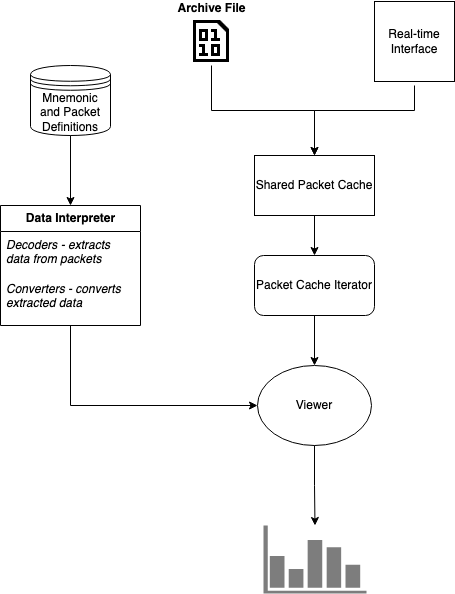
Architecture
Install and Run
The Data Viewer can be run on Windows, Mac OS and Linux.
Mac OS
Mac OS versions are distributed as an Apple Disk Image (dmg). The dmg contains a single .app which can be placed anywhere on your machine and then run. The recommended location is in your Applications directory. The .app contains all required dependencies.
Linux
The Linux version is distributed as an AppImage which are similar to the Mac OS .apps. All dependencies are contained within the AppImage which makes it easy to distribute and run. The user or sys admin does not need to manage dependencies. The AppImage can also be run from any directory by double clicking it or running it from the terminal:
cd <dir containing appimage>
./<appimage_name>
If you are not able to run it, you may need to make it executable:
cd <dir containing appimage>
chmod +x <appimage_name>
Windows
The Windows version is distributed as a zip file that contains the executable and all dependencies. The zip file can be extracted to any location. After extraction, the .exe can be run by double clicking on it.
Supplementary Directory
We use a separate repository for each mission to store released versions of the Data Viewer, config files, and other miscellaneous applications and files. The repository is used for more than just the Data Viewer. For example, on OCI we have an ocigse Git repository that's maintained on the gs490v-gitlab GitLab. We use the version control to provide updates to the workstations and end users.
The instructions to setup the gse repository is mission specific, but can generally be boiled down to:
- Acquire permissions to access the repository. Usually a NAMS request.
- Checkout the repository
- Perform initial one-time setup
If a machine does not have direct access to the repository, the supplementary directory may instead be distributed as a zip file.
The instructions to setup the ocigse directory are maintained in the README.md of the repository: https://gs490v-gitlab.ndc.nasa.gov/497_OCI/OCI_XINA
Initial Startup
When first opening the application, you will be prompted with a File Dialog and a What's New Dialog. You may close both of these.
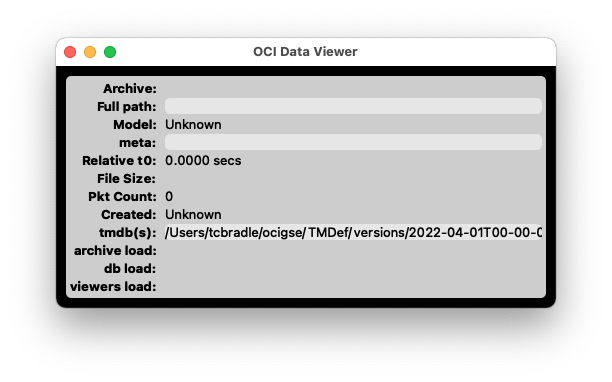
The main window (see below) displays information about the loaded archive. Depending on the operating system, the main menu may appear either at the top of the window or in the system menu bar at the top of the screen. If the menu bar is not visible, click the main window to bring it into focus.
Closing this window will exit the application.
Load Data
Real-time
To view data in real time:
-
Select Setup → FEDS Client from the menu.
-
Enter the Instrument ID and FEDS Network Address (IP address or hostname).
-
Click Start.
-
Verify the connection:
- A confirmation message indicating a successful connection.
- The KBytes/sec field displays a non-zero value when data is being received.
- The Pkt Count field in the main window is incrementing
Load from Archive
Load archived data using one of the following File Menu options:
File → TID Explorer
Opens a window with a tree view of the root data directory configured in ~/.699config.INI. Clicking on a file will immediately load it. Some of the features were designed for missions that follow the TID directory naming conventions. To open the TID Explorer at startup, click the gear icon and check "Use as default".
File → Open Archive
Opens a file selection dialog to select one or more archive files to load. The archives will be loaded in the order they are selected.
File → Open TID
Opens a dialog to select a TID directory to load. This is intended for missions that follow the TID directory naming conventions.
File → Open Next TID
Loads the next TID directory. This is intended for missions that follow the TID directory naming conventions.
File → Open Previous TID
Loads the previous TID directory. This is intended for missions that follow the TID directory naming conventions.
Export Data
- File → Export HK Data
- Update filename
- Select directory to export to
- Select the column delimiter
- The "Combine Time Columns" option will output only 1 time column. By default, there is a time column per mnemonic.
- Select the Time Source:
- Packet Time uses the time in the mission packet header.
- Ground Receipt Time uses the time the ground system receives the packet. This option only works if the ground system supports it.
- Select the Time Mode to control the format of the time column:
- Relative Time is the time in seconds from the first packet's time in the loaded archive
- Date/Time is the time in YYYY-MM-DD HH:MM:SS format
- Timestamp is the Unix timestamp in seconds
- Specify the Start and End Time in YYYY-MM-DD HH:MM:SS format. The default Start and End Time will encapsulate all data in the archive.
- Click "Add Field" to select the mnemonics to export
- Click "Export"
Clear Cached Data
A configurable amount of packets are cached in memory. To clear out all cached data: Data Viewers --> Clear all data
Change the refresh rate
Data Viewers --> Set Viewer Refresh Rate
Chart Tips
TODO
Quick Graph
You can quickly graph telemetry data over time.
Data Viewers --> Quick Graph
Open a new viewer
This method is used for opening up standard mission independent viewers:
Data Viewers --> Viewer Finder
Missions specific viewers can be opened up directly from the Data Viewers menu.
The viewers listed in the last section of the Data Viewers menu are the currently open viewers. Selecting from this list will bring it to the front.
Create Tabular or Graph Viewer
Data Viewers --> Make HK Viewer
OCI Viewers
Instructions on how to use the various OCI viewers
DDC Raw
The DDC Raw Viewer is used to display the DDC Raw captures. The DDC Raw captures are used for examining the raw samples out of the ADC. This mode is used for various tests:
- Line Tune Dark
- ADC Sample Point sweep
- RG Mag sweep
- RG Low sweep

OCI Step-by-step Instructions
Step-by-step instructions to use the Data Viewer for various OCI tests
ADC Sweep
This page contains instructions on how to view the ADC Sweep data with the DDC Raw Viewer.
The ADC sweep is performed by capturing multiple DDC raw captures while stepping the ADC sample point, which is a combination of the ADC mux delay (fine steps) and ADC Clock offset (coarse steps). One or more DDC Raw Captures may be collected at each step, depending on how the ITOS proc is configured. The collection of all steps is an "ADC Sweep".
Setup
- Open the DDC Raw Viewer (bring to front an existing one or open a new one)
- Set the
CCD ID - Start ADC Sweep ITOS procedure
- The viewer will update when a complete DDC raw capture is received. A single raw capture may look something like:


The colored regions indicate the different parts of a "line". Each raw capture contains ~11 lines of data (dependent on various OCI settings). The "INFO" annotation indicates the start of a raw capture.
Sweep Finished
When the ADC Sweep is finished, you may see something like below. (The actual shape may vary depending on the environment and other variables)

Scroll down to view the charts titled ADC Tap and CDS SD Tap. These are the main charts we will be using to analyze the ADC Sweep data.
The ADC Tap chart displays the ADC Counts vs. ADC Sample Point, where ADC Sample Point (x-axis) is defined as:
ADC Sample Point = (ADC Clock Offset * 48) + Mux Delay
The ADC Clock Offset is also known as the coarse setting, Mux Delay as the fine setting.
The CDS SD Tap chart displays the standard deviation of the calculated CDS for the image pixels (green region) of the 11 lines per capture.
If no data is visible, you may need to rescale the chart. You can do this 1 of 3 ways: double click on the chart, right click and select "Reset zoom", or click on the number at the top right corner of the chart.
Below are a few other notes:
- There is one ADC Tap and CDS SD Tap chart per tap.
- You may uncheck the
Per Tap Vid/Ressetting to hide the leftmost chart - The
Sync Axessetting will keep all of the chart axis ranges in sync. If you wish to control each chart separately, set this toNone. - If you wish to auto scale the y-axes, check
y auto. This will immediately rescale the y-axes, and to any new data that arrives. A common trick is to check and then uncheck to immediately rescale all of the y-axes. Note that even withy autochecked, theSync Axessetting is still enforced which may cause unexpected behavior.
At the end of the ADC Sweep, you may see something like this:

The ADC Tap charts are used to determine the ADC sample point settings we want to use. How this decision is made is outside the scope of these instructions.
You may see a jump/discontinuity in the chart when going to the next coarse setting. This occurs because the actual timing delay is not continuous, but we treat and display the ADC sample point as continuous. In the below chart, you can see discontinuities at x=48 and x=96, which is where the coarse setting is incremented. This should be kept in mind when determining what sample point to use.

Exporting
- To export all of the ADC Tap charts as a single image, click the Export ADC Charts button.
- To export all of the CDS SD Tap charts as a single image, click the Export CDS SD Charts button.
- Each raw capture is automatically exported to disk. You can the export path in the status bar at the bottom of the window. Each raw capture is written to a single file. A corresponding hk file is exported containing relevant telemetry data for the raw capture. Unfortunately, we do not automatically group all of the raw captures for a complete ADC Sweep. You can determine this manually by using the timestamp in the filename. Zip up all relevant files for the ADC Sweep if further analysis is required.
Touch Sensitivity Test
This page contains instructions on how to use the Data Viewer during the touch sensitivity tests.
Setup
- Open 2 instances of the Stats Per Pixel vs. Time viewer. (or bring to front if already open)
- Set the
Stats Modeon one toSDand the other toAVG. Note: The window title displays theStat Modewhich can be used to differntiate the 2 instances. - For both configure the following settings:
-
Subtrack Dark:None -
HAM Side:Both -
Lines mode:All -
time win[s]:120 (or something reasonable)
Optional:
-
y-auto:check if you want the y-axis to auto scale to new data -
Sync Axes:If enabled, the axes across the charts will be kept in sync -
Series Names:Switch between pixel number and wavelength
Real-time operations:
- Click the Pause button if you want to stop auto-scrolling the x-axis to new data
- Click the Go Live button to resume auto-scrolling the x-axis to new data
- Set the
time win[s]to 0 to scale the x-axis to all data - If you zoom in on a chart, the x-axis auto-scrolling will be disabled if the most recent data is no longer visible on the chart. You can resume auto-scrolling by resetting the zoom or clicking the Go Live button.
No data?
The charts may need to be properly scaled. Double click to zoom out, or right click and select "Reset Zoom".
Exporting
You can export the charts as a single image by clicking on the Snap button.
Examples


ADC Output Phase Tuning
RG Sweeps
These instructions are for the Rg Mag and Rg Low sweeps.
EMI Testing
These instructions detail how to use the data viewer during EMI testing.
- Update to get the newest EMI window config
- Open a terminal
-
cd ocigse -
git pull - Close terminal
- On the bottom menu bar, click on
ocidataviewand select theOCI Data Viewerwindow.

-
At the top of this window is a menu bar. Select
Setup->Restore Windows -
Select
emiand click OK. This will load the 'emi' window configuration and may take up to a minute to reload the cached data. -
You can switch between the open viewers by clicking on the
ocidataviewin the menu bar and then selecting a viewer from the list. -
The 4 main viewers you will be using are:
- SSM Ch Stats vs. Time - AVG - Displays AVG counts for the whole scan per SSM channel.
- SSM Ch Stats vs. Time - SD - Displays SD for the whole scan per SSM channel.
- Stats Per Pixel vs. Time - AVG - Displays AVG counts for the whole scan per FPA pixel.
- Stats Per Pixel vs. Time - SD - Displays SD for the whole scan per FPA pixel.
Susceptibilities are more apparent in the SD variants; below is an example of what this may look like:
``
DDC Raw Capture
Instructions to generate DDC Raw Capture images:
- File -> Open Archives -> Select archives to open. You may select more than one.
- Open DDC Raw viewer if not already open: Data Viewers -> DDC Raw
- Maximize the window
- Set settings on the right side:
- CCD ID: Red or BLUE
- Chart Height: 500
- Sync Axes: Both
- Show Regions: checked
- Line Window: 1
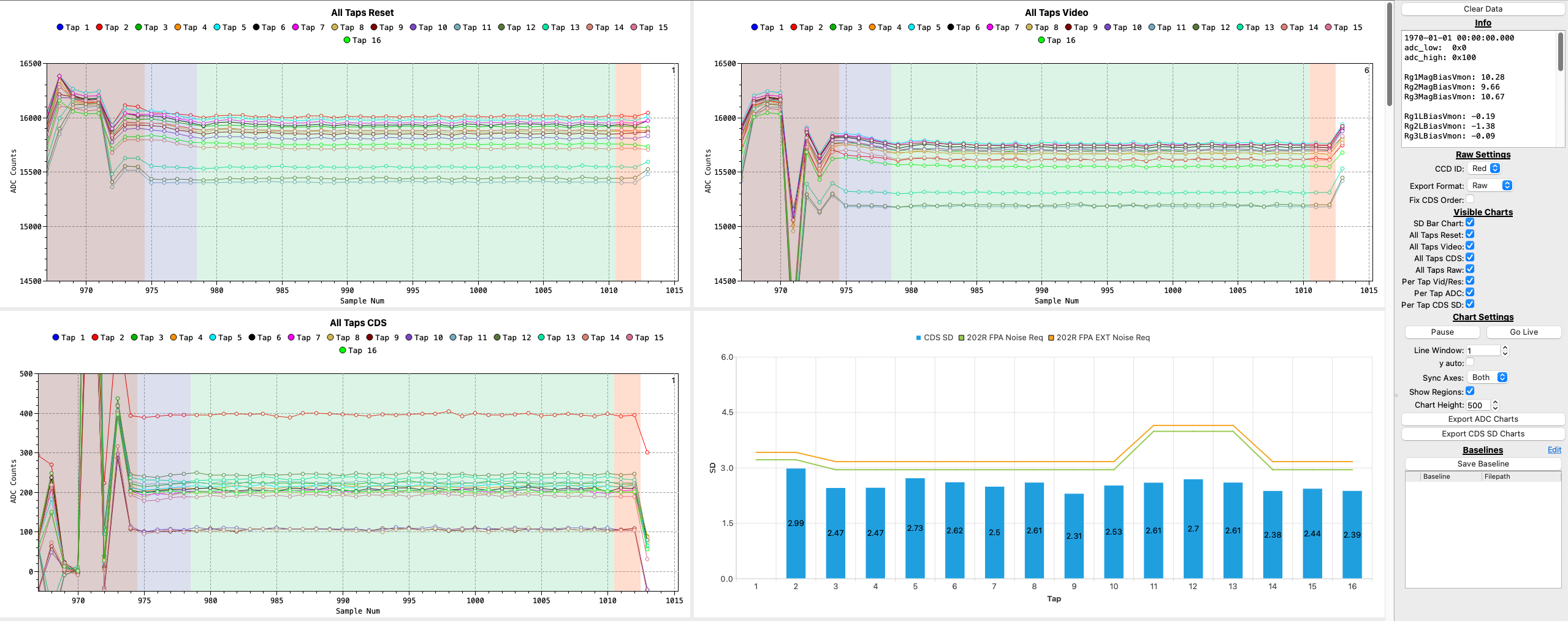
- Right click the "All Taps Video" chart's y-axis, set range [14500, 16500]
- Right click the "All Taps CDS" chart's y-axis, set range [-50, 500]
- If desired, right click on each chart and select "All series data points visible"
- All other settings can be left at the defaults
- Capture screenshot of whole window, except stop before the "All Taps Raw Samples" chart. Include the settings area on the right side.
- Repeat as needed for RED/BLUE
Below is an example screenshot:
DDC Scope Capture
The DDC Scope Mode Viewer is used to view and export the collected DDC Scope Capture data.
- File -> Open Archives -> Select archives to open. You may select more than one.
- Open DDC Scope Mode viewer if not already open: Data Viewers -> DDC Scope Mode
- Maximize the window
- Any scope captures will be parsed and loaded into the "Capture List"
- Under "Export Settings":
- If "Auto Export Raw CSV" is checked, the raw data will be auto exported to a CSV into ~/ocidata/scope_captures/
- If "Auto Export Retimed CSV" is checked, the retimed data will be auto exported to a CSV into ~/ocidata/scope_captures/
- If "Auto Export Charts" is checked, chart images will be automatically generated to ~/ocidata/scope_captures. The y-axis for these images are scaled for dark data. For light images, you will need to manually adjust the images and then click "Export Charts".
- The auto exported images are usually good enough for our functional tests. However, for special tests, such as performing scope captures with light, you will need to manually adjust the y-axis and export the charts by clicking "Export Charts".
Data Viewer Usage in PACE I&T
Overview
Usage of the Data Viewer in PACE I&T has changed since we no longer receive OCI science data in real-time. OCI Science File Archives are stored on-board PACE and downlinked at a later time. OCI HK and GSE data are still received in real-time.
A few updates to the Data Viewer and Science VMs have been made to accomadate for these changes.
We will be running 2 instances of the Data Viewer:
- One will be used to look at OCI HK and GSE data in real-time
- The other will be used to open OCI Science File Archives (which also contains OCI HK data)
In the bottom right of the VM, you will see 3 workspaces:

The Live workspace contains the Data Viewer that will receive OCI HK and GSE data in real-time from the FEDS. This instance of the Data Viewer works the same as in the OCI I&T environment.
The Playback workspace contains the Data Viewer that will be used to open and view OCI Science File Archives.
The GSE workspace contains an application that archives GSE data locally so it can be merged into the OCI Science File Archives so that OCI Science Data and GSE data can be viewed at the same time. You do not need to worry about this workspace.
Viewing OCI Science Data
To view OCI Science Data, first switch to the Playback workspace.
Open the Local Playback window:
You should see a window popup that looks like this:

Archive Index:
The Archive Index section on the right side displays the OCI Science File Archives that have been downlinked to the ground. You can click the Refresh button to refresh the list of archives. The list is also automatically refreshed the first time the Local Playback window is opened. This implies that the list is not automatically kept in sync with what archives have been downlinked.
You may click Load Selected Archive to immediately open the currently selected archive. Note: Using this method will not contain any GSE data.
Playback:
The Playback section on the left side is used for playing back time ranges of data. When you use this functionality, it will attempt to merge GSE and OCI data so that both are viewable at the same time.
Selecting an archive in the Archive Index list will automatically update the Start time input. A Duration can be selected to choose how much data will be viewed. The max duration is 10 minutes due to resource limitations.
NOTE: The Set to most recent is NOT aware of what data exists in the archives. It offsets from the system's current time, not the data.
Fast as possible should generally be left checked.
Once configured, click Start to initiate the playback. When the playback has finished, the Data Viewer will automatically load the archive.
Example Viewers
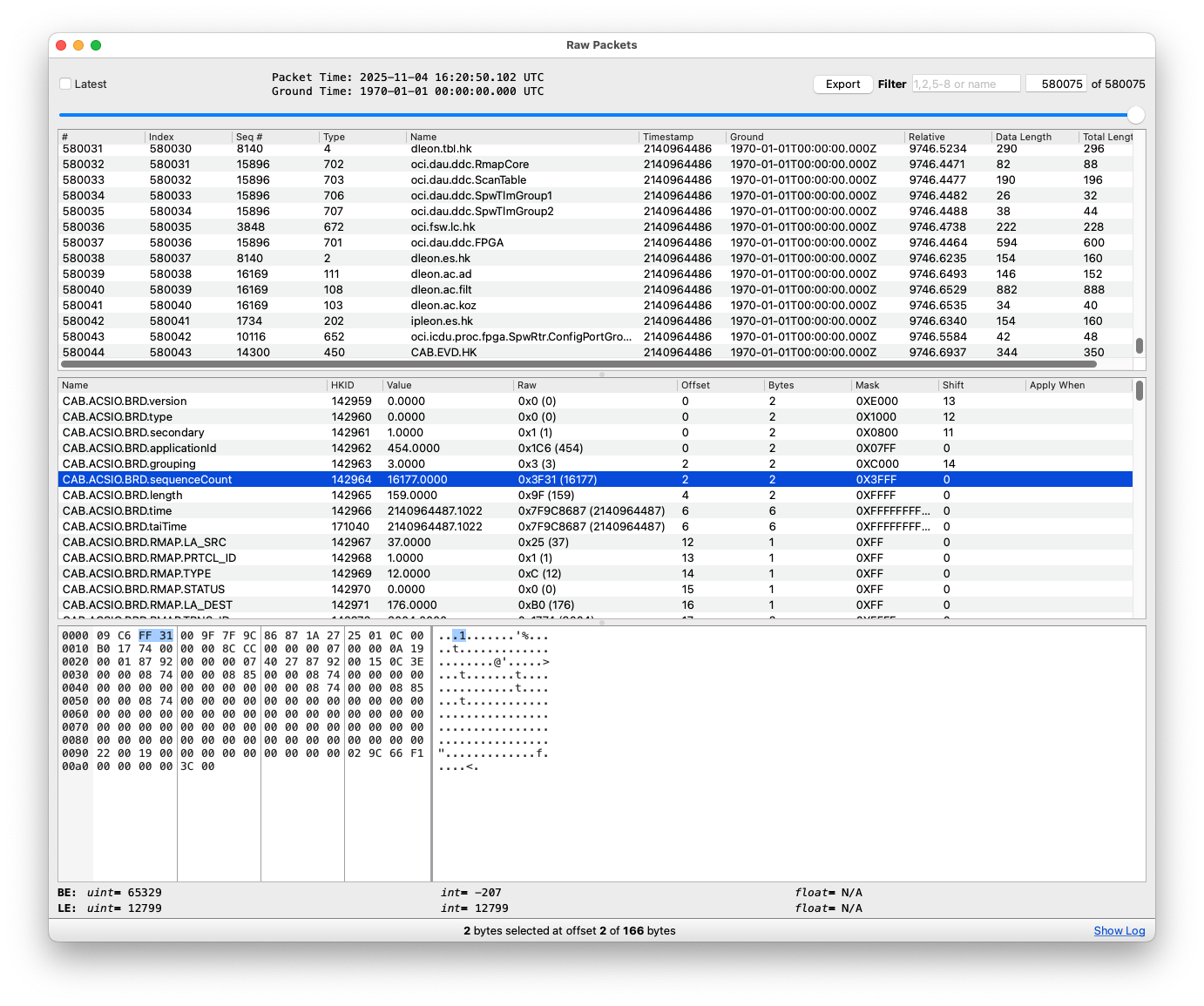
Raw Packet Viewer
Mnemonic Database
When opening the application, the newest version of the mnemonic database is automatically loaded. You can manually load a different database with File --> Load database.
Single Page User Guide
Table of Contents
- 1. Overview
- 2. Install and Run
- 3. Main Window
- 4. Loading Data
- 5. Opening Viewers
- 6. Built-In Viewer Reference
- 7. Common Viewer Controls
- 8. Earth Image Workflow
- 9. Radiance vs. Time Workflow
- 10. Spectral Radiance Workflow
- 11. DDC Raw Workflow
- 12. Saving and Restoring Windows
- 13. Setup Menu
- 14. OCI Settings
- 15. Limits Monitor
- 16. Preferences
- 17. Help
- 18. Troubleshooting
- 19. Documentation Maintenance Notes
1. Overview
OCI Data Viewer is an application for viewing telemetry data.
It provides the following features:
- View data in real-time. Supports TCP or reading from a file.
- Load archives to post-process data. Supports CCSDS or 699 packets. Additional formats can be supported upon request.
- Generic displays (viewers) of telemetry data:
- Tabular view
- Time series plots
- Packet statistics
- Event log
- Data rate
- Raw packets as hex
- Tabular view
- Custom viewers to meet a mission's needs
- Generic and mission specific settings
- Display science data and housekeeping telemetry data together
- Save and load viewer configurations
- Multiple models per mission to support per model configuration
- Supports interpretation of the ITOS and ASIST mnemonic definition formats
The Data Viewer can be run on Windows, Mac OS and Linux.
2. Install and Run
2.1 Mac OS
Mac OS versions are distributed as an Apple Disk Image (dmg). The dmg contains a single .app
which can be placed anywhere on your machine and then run. The recommended location is in your
Applications directory. The .app contains all required dependencies.
2.2 Linux
The Linux version is distributed as an AppImage which are similar to the Mac OS .apps. All
dependencies are contained within the AppImage which makes it easy to distribute and run. The user
or sys admin does not need to manage dependencies. The AppImage can also be run from any directory
by double clicking it or running it from the terminal:
cd <dir containing appimage>
./<appimage_name>
If you are not able to run it, you may need to make it executable:
cd <dir containing appimage>
chmod +x <appimage_name>
2.3 Windows
The Windows version is distributed as a zip file that contains the executable and all dependencies.
The zip file can be extracted to any location. After extraction, the .exe can be run by double
clicking on it.
2.4 Supplementary Directory
We use a separate repository for each mission to store released versions of the Data Viewer, config
files, and other miscellaneous applications and files. The repository is used for more than just the
Data Viewer. For example, on OCI we have an ocigse Git repository that's maintained on the
gs490v-gitlab GitLab. We use the version control to provide updates to the workstations and end
users.
The instructions to setup the gse repository is mission specific, but can generally be boiled down to:
- Acquire permissions to access the repository. Usually a NAMS request.
- Checkout the repository
- Perform initial one-time setup
If a machine does not have direct access to the repository, the supplementary directory may instead be distributed as a zip file.
The instructions to setup the ocigse directory are maintained in the README.md of the repository: https://gs490v-gitlab.ndc.nasa.gov/497_OCI/OCI_XINA
3. Main Window
The main window displays info about the loaded data. Closing this window will close the application.

3.1 Main Window Fields
| Field | Description |
|---|---|
Archive |
Active telemetry archive file name. Blank when receiving network data. |
Full path |
Full path to the active telemetry file. |
Model |
Model associated with the data, or Unknown if unresolved. |
meta |
Metadata file path. It can identify the file, model, config, and DB patches. |
Relative t0 |
Time origin, in seconds, used for relative telemetry times. |
File Size |
Current active telemetry file size, formatted as bytes, KB, MB, or GB. |
Pkt Count |
Number of packets currently loaded in the telemetry cache. |
Created |
Generated timestamp for the telemetry data, or Unknown if unavailable. |
tmdb(s) |
Loaded telemetry databases and patches used to decode, scale, and name fields. |
archive load |
Time required to parse and load the archive, in milliseconds. |
db load |
Time required to load database files and patches, in milliseconds. |
viewers load |
Time required to reload open viewers after data and caches are ready. |
3.2 Top Menu Bar
-
File- Opens telemetry data and data-management tools.
- Use this menu to open a TID directory, open one or more archives, move to the next or previous TID, show the TID Explorer, show the Archive Downloader, load a telemetry database, or export housekeeping data.
-
Data Viewers- Opens and manages viewer windows.
- Use this menu to open viewer definition files, search with Viewer Finder, create an HK viewer, build a Quick Graph, set the viewer refresh rate, clear all viewer data, or open built-in OCI viewer windows.
-
Setup- Controls saved layouts, chart behavior, live-data tools, playback tools, and OCI processing settings.
- Use this menu to save or restore window configurations, enable or disable chart animations, choose plot series colors, open the FEDS Client or FEDS Control windows, open Local Playback, or edit OCI Settings.
-
Limits- Opens the Limits Monitor when limit monitoring is enabled in settings.
- This menu is hidden when the limit monitor is disabled.
-
Options- Opens the application Preferences dialog for the active ground software configuration group.
- Use this menu to review or edit environment-level paths and settings.
-
Help- Shows application information and support resources.
- Use this menu to open the About dialog, view What's New release notes, or find the configured issue-reporting contact.
4. Loading Data
4.1 Open a TID Directory
Use File > Open TID... or Ctrl+O.
Select a TID directory. The selected directory will be searched for a telemetry file.
4.2 Move Between TIDs
Use:
-
File > Open next TID...orCtrl+Right -
File > Open prev TID...orCtrl+Left
These actions look for adjacent TID directories beside the current TID directory. They only work after a TID has already been opened and when neighboring directories follow the expected naming convention.
4.3 Open Archives
Use File > Open Archives....
Select one or more archive files to load.
4.4 TID Explorer
Use File > TID Explorer or Ctrl+E.
The TID Explorer opens a browser rooted at the configured data root. Click a test directory or archive in the explorer to open it.
The data root comes from the active ground software configuration group. For OCI, this is the
data_root setting in the active Config699 group. Open Options > Preferences to review or change
the configured data root. The same data root is also used as the default starting location for
File > Open TID... and as the default save location for archive downloads.
When a telemetry metadata file identifies a different model or configuration group, OCI Data Viewer can switch to that group while opening the data. In that case, future data-root lookups use the newly active group.
4.5 Archive Downloader
Use File > Archive Downloader or Ctrl+D.
The downloader can find and download daily archives. Select:
-
Date -
Save to -
Model
Then click Find Archives. Matching archives appear in a table with start and end times. Click
Download on the desired row to download that archive. The downloader checks available disk space
before starting and shows progress in the table.
The downloader supports these model choices:
-
PACE-OCI (Science + HK) -
PACE-spacecraft (HK)
4.6 Load a Telemetry Database
Use File > Load database....
Select a telemetry database file. The loaded database patch list and load time are shown on the main splash page. If loading fails, the splash page records the failure message.
4.7 Export Housekeeping Data
Use File > Export HK Data....
This opens the HK export dialog for the currently loaded telemetry file. Open telemetry data before using this workflow.
5. Opening Viewers
The Data Viewers menu manages all viewer windows.
5.1 Open Viewer Files
Use Data Viewers > Open....
Select one or more viewer definition files from the configured viewers directory. Supported file types are:
-
.hk -
.sc -
.rt -
.grf
5.2 Viewer Finder
Use Data Viewers > Viewer Finder or Ctrl+N.
Viewer Finder searches the configured viewer directory and opens the selected viewer.
5.3 Make HK Viewer
Use Data Viewers > Make HK Viewer or Ctrl+M.
This opens the HK viewer builder for creating or editing housekeeping viewer definitions.
5.4 Quick Graph
Use Data Viewers > Quick graph... or Ctrl+G.
Select one or more housekeeping items and a time mode. OCI Data Viewer creates a temporary graph viewer with the selected traces.
5.5 Set Viewer Refresh Rate
Use Data Viewers > Set Viewer Refresh Rate.
Available refresh rates:
-
Disabled -
1 Hz -
2 Hz -
10 Hz -
Custom...
Disabling refresh stops live updates. A higher refresh rate updates viewers more often but can increase CPU and UI load.
5.6 Clear Viewer Data
Use Data Viewers > Clear all data.
This clears cached telemetry, science cache data, marker cache data, and viewer data, then resumes updates if viewer refreshing is enabled.
6. Built-In Viewer Reference
The built-in viewers are listed directly in the Data Viewers menu. Use this section as the guide's
viewer index.
6.1 Science and Radiance Viewers
| Viewer | Use |
|---|---|
Earth Image |
Build scan-line image products and export current or RGB images. |
Image |
View OCI image-style science data. |
Radiance vs. Time |
Plot radiance over time by CCD, wavelength, HAM side, and scan line. |
Radiance vs. Time Summed |
Plot summed radiance over time. |
Sci Pixel 3D |
Inspect science pixel data in a 3D visualization. |
Spectral Radiance |
View spectral radiance with optional FPA and SDA model overlays. |
Spectral Radiance Stats |
View statistical spectral radiance summaries. |
Spectral Waterfall |
View spectral data as a waterfall plot. |
6.2 Counts and Statistics Viewers
| Viewer | Use |
|---|---|
Counts Per Pixel vs. Time |
Plot count data per pixel over time. |
Counts Per Tap (and SSM CH) |
Plot counts per tap and SSM channel data. |
Stats Per Pixel vs. Time |
Plot selected pixel statistics over time. |
Stats Per Tap vs. Time |
Plot selected tap statistics over time. |
6.3 DDC Viewers
| Viewer | Use |
|---|---|
DDC Func Verification |
Verify DDC functional behavior. |
DDC Raw |
Inspect DDC reset, video, CDS, ADC, tap, and CDS SD charts. |
DDC Scope Mode |
Inspect DDC scope-mode captures. |
DDC Sci Packet |
Inspect DDC science packets. |
6.4 SSM Viewers
| Viewer | Use |
|---|---|
SSM Ch Stats Table |
View SSM channel statistics in table form. |
SSM Ch Stats vs. Time |
Plot SSM channel statistics over time. |
SSM Func Verification |
Verify SSM functional behavior. |
SSM Line Check |
Check SSM line consistency. |
SSM Sci Packet |
Inspect SSM science packets. |
SSM Trend |
Trend SSM data over time. |
6.5 GSE Viewers
| Viewer | Use |
|---|---|
GSE FW Det vs. Time |
Plot GSE filter wheel detector data over time. |
GSE Radiance vs. Time |
Plot GSE radiance data over time. |
GSE Spectral Radiance |
View GSE spectral radiance data. |
GSE Spectral Waterfall |
View GSE spectral data as a waterfall plot. |
6.6 Packet, Cache, Marker, and Test Viewers
| Viewer | Use |
|---|---|
DAUC Dwell vs Time |
View DAUC dwell values over time. |
Markers |
View OCI markers and marker-derived context. |
PRBS 9 |
Inspect PRBS9 verification statistics. |
Sci Cache |
Inspect the science cache state. |
7. Common Viewer Controls
Viewer controls vary by data type, but many viewers use common patterns:
-
Reloadupdates the viewer using the current settings. -
Go Livemoves the chart to new data. -
Pausestops live chart following. -
Control Tableopens a selector for choosing scan-line related settings from control-table data. -
y autoorY Axis Auto Scalelets the chart scale the Y axis from displayed data. -
Time Windowcontrols how much recent data is shown on time plots. -
Line AvgandScan Avgcontrol spatial or scan averaging where supported. -
Max Points Per Serieslimits the amount of plotted data for performance.
8. Earth Image Workflow
- Open telemetry data with
File > Open TID...orFile > Open Archives.... - Open
Data Viewers > Earth Image. - Choose dark subtraction, HAM side, line start, and line end.
- Select wavelengths to sum.
- Set the scan window.
- Click
Reload. - Adjust the color scale manually or enable
Auto. - Use
Export Current Imageto save the current image. - Use
Export RGB Imagesto export red, green, and blue image outputs.
9. Radiance vs. Time Workflow
- Open telemetry data.
- Open
Data Viewers > Radiance vs. Time. - Set CCD ID, wavelength, dark mode, HAM side, scan line, line average, and scan average.
- Click
Addto create a series. - Repeat for additional series.
- Use
Reload All Changed Seriesafter modifying existing series settings. - Use
Copy To All Serieswhen selected settings should be copied from one series to every series. - Adjust
Time Window,y auto,normalized, andMax Points Per Seriesas needed.
10. Spectral Radiance Workflow
- Open telemetry data.
- Open
Data Viewers > Spectral Radiance. - Choose dark mode, HAM side, scan line, line average, and scan average.
- Click
Control Tableif you want to select a scan line from control-table data. - Click
Reload. - Adjust Y-axis mode and auto-scaling.
- Enable FPA Model or SDA Model overlays when requirements/model comparison is needed.
11. DDC Raw Workflow
- Open telemetry data.
- Open
Data Viewers > DDC Raw. - Select the CCD/DDC ID.
- Select export format and whether to fix CDS order.
- Choose which charts are visible.
- Adjust line window, Y-axis auto scale, synchronized axes, region display, and chart height.
- Use
Export ADC ChartsorExport CDS SD Chartswhen a chart export is needed.
12. Saving and Restoring Windows
-
Setup > Save WindowsorCtrl+S -
Setup > Restore WindowsorCtrl+R
When closing the application, OCI Data Viewer may prompt you to save the current window configuration before quitting.
13. Setup Menu
-
Save Windows -
Restore Windows -
Chart animations -
Select Series Colors -
FEDS Client -
FEDS Control -
Local Playback -
OCI Settings
Use Chart animations to enable or disable chart animation globally. Disable animations if chart
motion makes analysis harder or if the UI is under load.
Use Select Series Colors to customize the color sequence used for plotted series.
14. OCI Settings
Use Setup > OCI Settings.
These settings affect science processing and can force all viewers to reload. Review changes before saving.
Settings include:
- Grande correction enablement and correction/uncertainty files.
- Dark collect shifting.
- Handling of scans with missing lines.
- Ancillary data handling.
- Whether scans with no lines are added.
- DDC science packet CRC checking.
- MCE HK scan buffer size.
- SWIR science product offsets file.
- SWIR high-speed ADC channel offsets file.
- SWIR single-image ADC channel offsets file.
- SWIR channel mapping file.
- Expected SSM shorted-input counts and standard deviation ranges.
- Dropping invalid SSM data or SSM reset data.
- SSM line-delay handling.
- CCD start-delay handling.
- Number of dark collect scan lines to skip.
- ADC latency mapping.
- HK stale timeout.
15. Limits Monitor
If the limits monitor is enabled in settings, the Limits menu appears. Use
Limits > Limits Monitor or Ctrl+L to bring the monitor to the front.
16. Preferences
Use Options > Preferences.
Preferences open the ground software configuration dialog for the active configuration group. Use this to review environment-level settings such as configured data, database, and viewer directories.
17. Help
-
About -
What's New... -
Report an issue...
Use What's New... to read the built-in release notes. Use Report an issue... to find the
configured developer contact for bugs and suggestions.
18. Troubleshooting
18.1 No Data Appears in a Viewer
Check:
- A TID or archive is open.
- The loaded telemetry database matches the telemetry data.
- Required decoder and transfer-function plugins loaded successfully.
- The viewer scan/time/window settings include the data of interest.
- Viewer refresh is enabled, or click
Reloadin the viewer.
18.2 Opening a Telemetry File Fails
Check:
- The selected directory contains a supported telemetry file.
- The telemetry database can decode the packets in the file.
- Required metadata is present.
- The file is readable by the current user.
18.3 Archive Download Fails
Check:
- The selected date and model have available archive entries.
- The destination directory exists or can be created.
- At least 10 GB of disk space remains after the estimated download.
- Network access to the archive source is available.
18.4 The UI Is Slow
Try:
- Lowering
Data Viewers > Set Viewer Refresh Rate. - Disabling
Setup > Chart animations. - Reducing
Max Points Per Seriesin time-based viewers. - Closing viewers that are not needed.
- Clearing old viewer data with
Data Viewers > Clear all data.
19. Documentation Maintenance Notes
When adding or changing a viewer:
- Update the
Built-In Viewer Referencetable. - Add or revise a workflow section if the viewer has unique user actions.
- Update menu descriptions if the menu text or shortcut changes.
- Add screenshots after UI text stabilizes.
- Update the table of contents and section numbers when sections are added, removed, renamed, or moved.