The colored regions indicate the different parts of a "line". Each raw capture contains ~11 lines of data (dependent on various OCI settings). The "INFO" annotation indicates the start of a raw capture.
#### Sweep Finished When the ADC Sweep is finished, you may see something like below. (The actual shape may vary depending on the environment and other variables) [](http://wiki2.xina.io/uploads/images/gallery/2022-04/image-1648777610555.png) Scroll down to view the charts titled **ADC Tap** and **CDS SD Tap**. These are the main charts we will be using to analyze the ADC Sweep data. The **ADC Tap** chart displays the ADC Counts vs. ADC Sample Point, where ADC Sample Point (x-axis) is defined as: ``` ADC Sample Point = (ADC Clock Offset * 48) + Mux Delay ``` The `ADC Clock Offset` is also known as the coarse setting, `Mux Delay` as the fine setting. The **CDS SD Tap** chart displays the standard deviation of the calculated CDS for the image pixels (green region) of the 11 lines per capture.If no data is visible, you may need to rescale the chart. You can do this 1 of 3 ways: double click on the chart, right click and select "Reset zoom", or click on the number at the top right corner of the chart.
Below are a few other notes: - There is one **ADC Tap** and **CDS SD Tap** chart per tap. - You may uncheck the `Per Tap Vid/Res` setting to hide the leftmost chart - The `Sync Axes` setting will keep all of the chart axis ranges in sync. If you wish to control each chart separately, set this to `None`. - If you wish to auto scale the y-axes, check `y auto`. This will immediately rescale the y-axes, and to any new data that arrives. A common trick is to check and then uncheck to immediately rescale all of the y-axes. Note that even with `y auto` checked, the `Sync Axes` setting is still enforced which may cause unexpected behavior. At the end of the ADC Sweep, you may see something like this: [](http://wiki2.xina.io/uploads/images/gallery/2022-04/image-1648779544986.png) The **ADC Tap** charts are used to determine the ADC sample point settings we want to use. How this decision is made is outside the scope of these instructions.You may see a jump/discontinuity in the chart when going to the next coarse setting. This occurs because the actual timing delay is not continuous, but we treat and display the ADC sample point as continuous. In the below chart, you can see discontinuities at x=48 and x=96, which is where the coarse setting is incremented. This should be kept in mind when determining what sample point to use.
[](http://wiki2.xina.io/uploads/images/gallery/2022-04/image-1648782555822.png) #### Exporting - To export all of the **ADC Tap** charts as a single image, click the **Export ADC Charts** button. - To export all of the **CDS SD Tap** charts as a single image, click the **Export CDS SD Charts** button. - Each raw capture is automatically exported to disk. You can the export path in the status bar at the bottom of the window. Each raw capture is written to a single file. A corresponding hk file is exported containing relevant telemetry data for the raw capture. Unfortunately, we do not automatically group all of the raw captures for a complete ADC Sweep. You can determine this manually by using the timestamp in the filename. Zip up all relevant files for the ADC Sweep if further analysis is required. # New Page # Touch Sensitivity Test This page contains instructions on how to use the Data Viewer during the touch sensitivity tests. ##### Setup 1. Open 2 instances of the **Stats Per Pixel vs. Time** viewer. (or bring to front if already open) 2. Set the `Stats Mode` on one to `SD` and the other to `AVG`. Note: The window title displays the `Stat Mode` which can be used to differntiate the 2 instances. 3. For both configure the following settings: - `Subtrack Dark:` None - `HAM Side:` Both - `Lines mode:` All - `time win[s]:` 120 (or something reasonable) ##### Optional: - `y-auto:` check if you want the y-axis to auto scale to new data - `Sync Axes:` If enabled, the axes across the charts will be kept in sync - `Series Names:` Switch between pixel number and wavelength ##### Real-time operations: - Click the **Pause** button if you want to stop auto-scrolling the x-axis to new data - Click the **Go Live** button to resume auto-scrolling the x-axis to new data - Set the `time win[s]` to 0 to scale the x-axis to all data - If you zoom in on a chart, the x-axis auto-scrolling will be disabled if the most recent data is no longer visible on the chart. You can resume auto-scrolling by resetting the zoom or clicking the **Go Live** button. ##### No data? The charts may need to be properly scaled. Double click to zoom out, or right click and select "Reset Zoom". ##### Exporting You can export the charts as a single image by clicking on the **Snap** button. ##### Examples [](http://wiki2.xina.io/uploads/images/gallery/2022-04/image-1648787018274.png) [](http://wiki2.xina.io/uploads/images/gallery/2022-04/image-1648787048621.png) # ADC Output Phase Tuning # RG Sweeps These instructions are for the Rg Mag and Rg Low sweeps. # EMI Testing These instructions detail how to use the data viewer during EMI testing. 1. Update to get the newest EMI window config 1. Open a terminal 2. `cd ocigse` 3. `git pull` 4. Close terminal 2. On the bottom menu bar, click on `ocidataview` and select the `OCI Data Viewer` window. [](http://wiki2.xina.io/uploads/images/gallery/2022-06/image-1655400490703-27-46.png) 3. At the top of this window is a menu bar. Select `Setup` -> `Restore Windows` 4. Select `emi` and click OK. This will load the 'emi' window configuration and may take up to a minute to reload the cached data. 5. You can switch between the open viewers by clicking on the `ocidataview` in the menu bar and then selecting a viewer from the list. 6. The 4 main viewers you will be using are: - **SSM Ch Stats vs. Time - AVG** - Displays AVG counts for the whole scan per SSM channel. - **SSM Ch Stats vs. Time - SD** - Displays SD for the whole scan per SSM channel. - **Stats Per Pixel vs. Time - AVG** - Displays AVG counts for the whole scan per FPA pixel. - **Stats Per Pixel vs. Time - SD** - Displays SD for the whole scan per FPA pixel.Susceptibilities are more apparent in the SD variants; below is an example of what this may look like:
`` [](http://wiki2.xina.io/uploads/images/gallery/2022-06/image-1655774792298-25-56.png) # DDC Raw Capture Instructions to generate DDC Raw Capture images: 1. File -> Open Archives -> Select archives to open. You may select more than one. 2. Open DDC Raw viewer if not already open: Data Viewers -> DDC Raw 3. Maximize the window 4. Set settings on the right side: - CCD ID: Red or BLUE - Chart Height: 500 - Sync Axes: Both - Show Regions: checked - Line Window: 1 - Right click the "All Taps Video" chart's y-axis, set range [14500, 16500] - Right click the "All Taps CDS" chart's y-axis, set range [-50, 500] - If desired, right click on each chart and select "All series data points visible" - All other settings can be left at the defaults 5. Capture screenshot of whole window, except stop before the "All Taps Raw Samples" chart. Include the settings area on the right side. 6. Repeat as needed for RED/BLUE Below is an example screenshot: [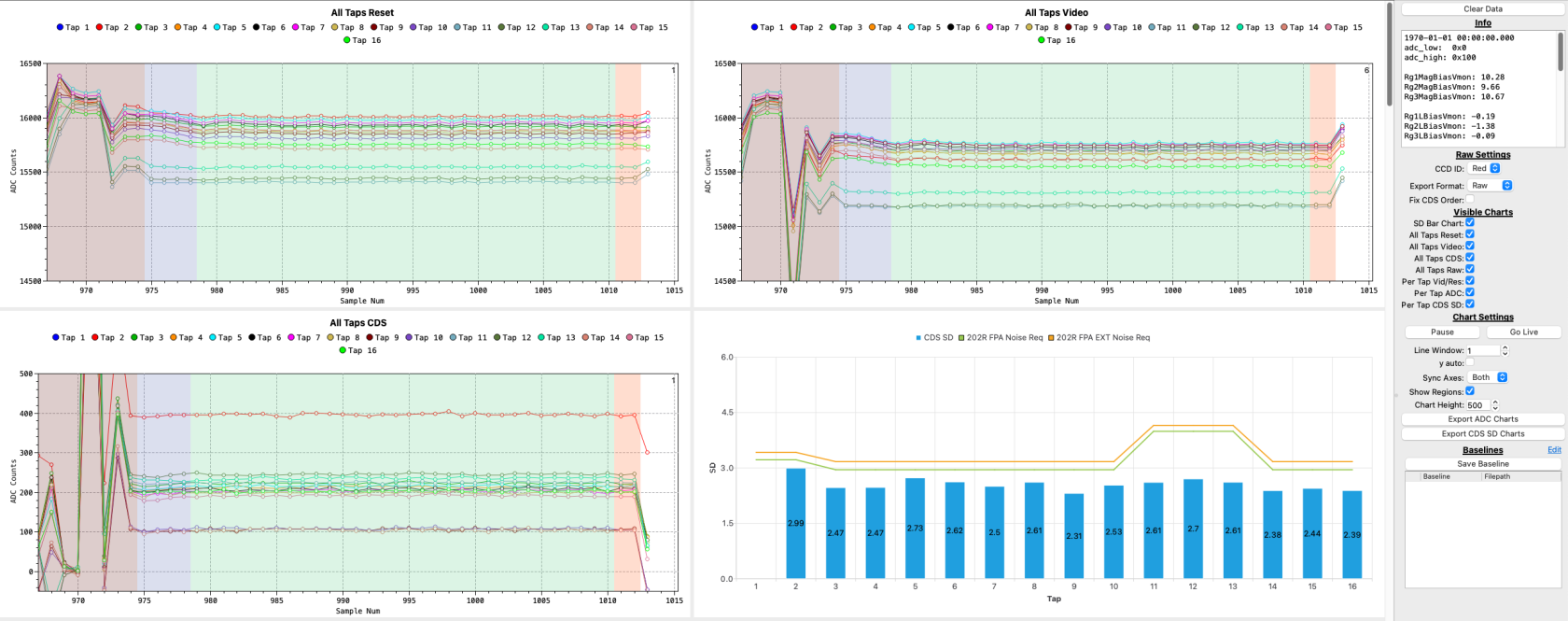](https://wiki.xina.io/uploads/images/gallery/2024-02/image-1708701901197.png) # DDC Scope Capture The DDC Scope Mode Viewer is used to view and export the collected DDC Scope Capture data. 1. File -> Open Archives -> Select archives to open. You may select more than one. 2. Open DDC Scope Mode viewer if not already open: Data Viewers -> DDC Scope Mode 3. Maximize the window 4. Any scope captures will be parsed and loaded into the "Capture List" 5. Under "Export Settings": 1. If "Auto Export Raw CSV" is checked, the raw data will be auto exported to a CSV into ~/ocidata/scope_captures/ 2. If "Auto Export Retimed CSV" is checked, the retimed data will be auto exported to a CSV into ~/ocidata/scope_captures/ 3. If "Auto Export Charts" is checked, chart images will be automatically generated to ~/ocidata/scope_captures. The y-axis for these images are scaled for dark data. For light images, you will need to manually adjust the images and then click "Export Charts". 6. The auto exported images are usually good enough for our functional tests. However, for special tests, such as performing scope captures with light, you will need to manually adjust the y-axis and export the charts by clicking "Export Charts". # Download PACE Operations Data from ODPS These instructions can be used to download PACE S-Band and OCI Ka-Band Level 0 files, which can then be loaded into the OCI Data Viewer. ##### Prerequisites: - Created an account on [https://oceandata.sci.gsfc.nasa.gov](https://oceandata.sci.gsfc.nasa.gov) - For OCI Ka-Band data, you will need to be granted access ##### Steps: 1. Navigate to [https://oceandata.sci.gsfc.nasa.gov/api/file_search/](https://oceandata.sci.gsfc.nasa.gov/api/file_search/) 2. On the left hand side above the "File Search", click "Login" and login using your credentials. Skip this step if you're already logged in. 3. Click the "Advanced" tab 4. Instrument: - For PACE S-Band Files: `PACE-spacecraft` - For OCI Ka-Band Files: `PACE-OCI` 5. Data Class: `Show All` 6. Data Type: `All` 7. Date Range: Input time range of desired data in UTC. 8. Filename Pattern (case sensitive): - For PACE S-Band Files: `HSK*HSK` - For OCI Ka-Band Files: `OCI*oci` 9. Click "Submit" 10. Click Filename to download archives Example query results for OCI files: [](https://wiki.xina.io/uploads/images/gallery/2024-02/image-1708697227300.png)